Getting started
Lumbre opens at app.lumbre.pro, and you can try the whole thing without creating an account at demo.lumbre.pro. The demo is the real app with sample data and it resets itself every half hour, so you can break whatever you like.
Lumbre is invitation-only. You request one on the access page by leaving your email; when I activate your account, you’ll get an email with a link to create it, valid for 7 days. The demo, on the other hand, is open and keeps nobody waiting.
The first thing you see is the week. Type into any day and press Enter; that’s a task. The rest can be learned later, or never.
The views
There are three ways to look at the same thing:
- Today. A single day, with two lanes: TODAY and ☾ LATER, which merge into one at the hour you choose.
- Upcoming. What is coming, starting today: one continuous scroll that carries on into the following weeks. It can be stacked (the days one under another, the one it starts on) or in columns (the seven days of the week side by side); you switch in «More options → Layout».
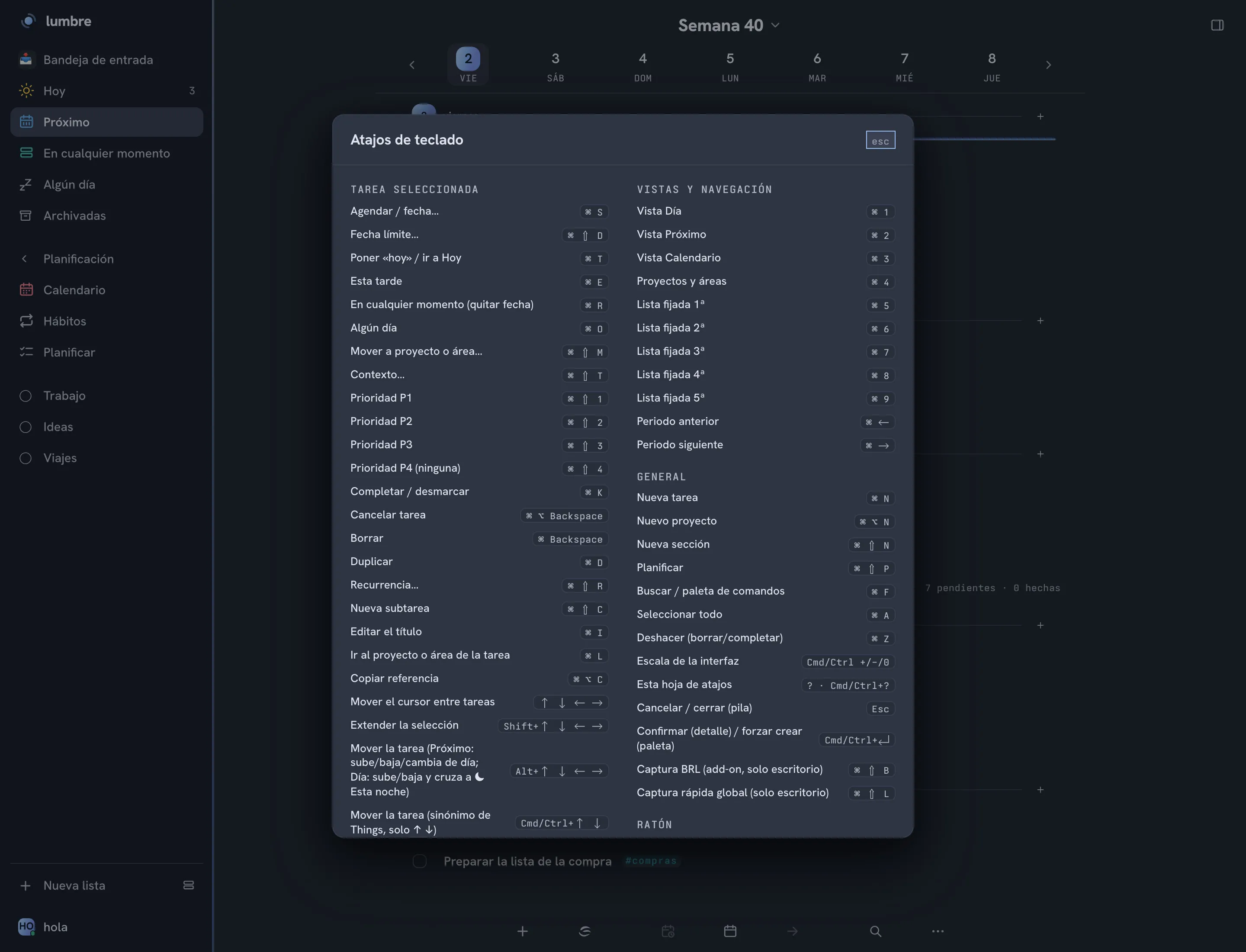
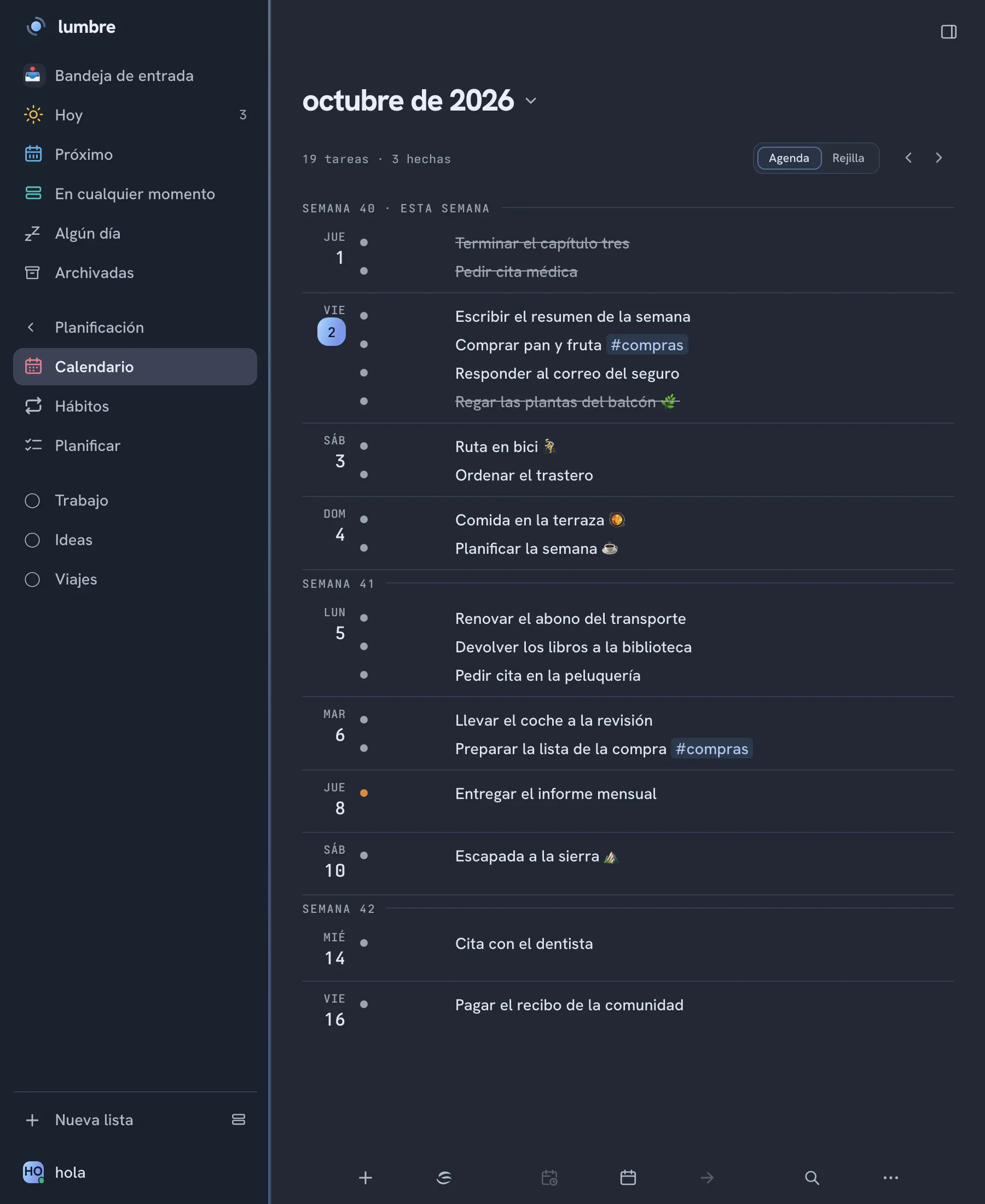
- Calendar. The month, as a grid or as an agenda.
And the List view, which shows a project as a document: with its sections, its project note and its metrics.
Which one the app opens on is set in Settings, and it is saved per device: you can keep your phone on Today and your laptop on Upcoming. The weekend can be hidden (the M–S button).
A task can carry a time, but the day reads as a list rather than a calendar split into slots.
Creating tasks
Three ways, from the quickest to the most complete:
Inline. Click a day, type, Enter. And Enter again chains the next one without touching the mouse.
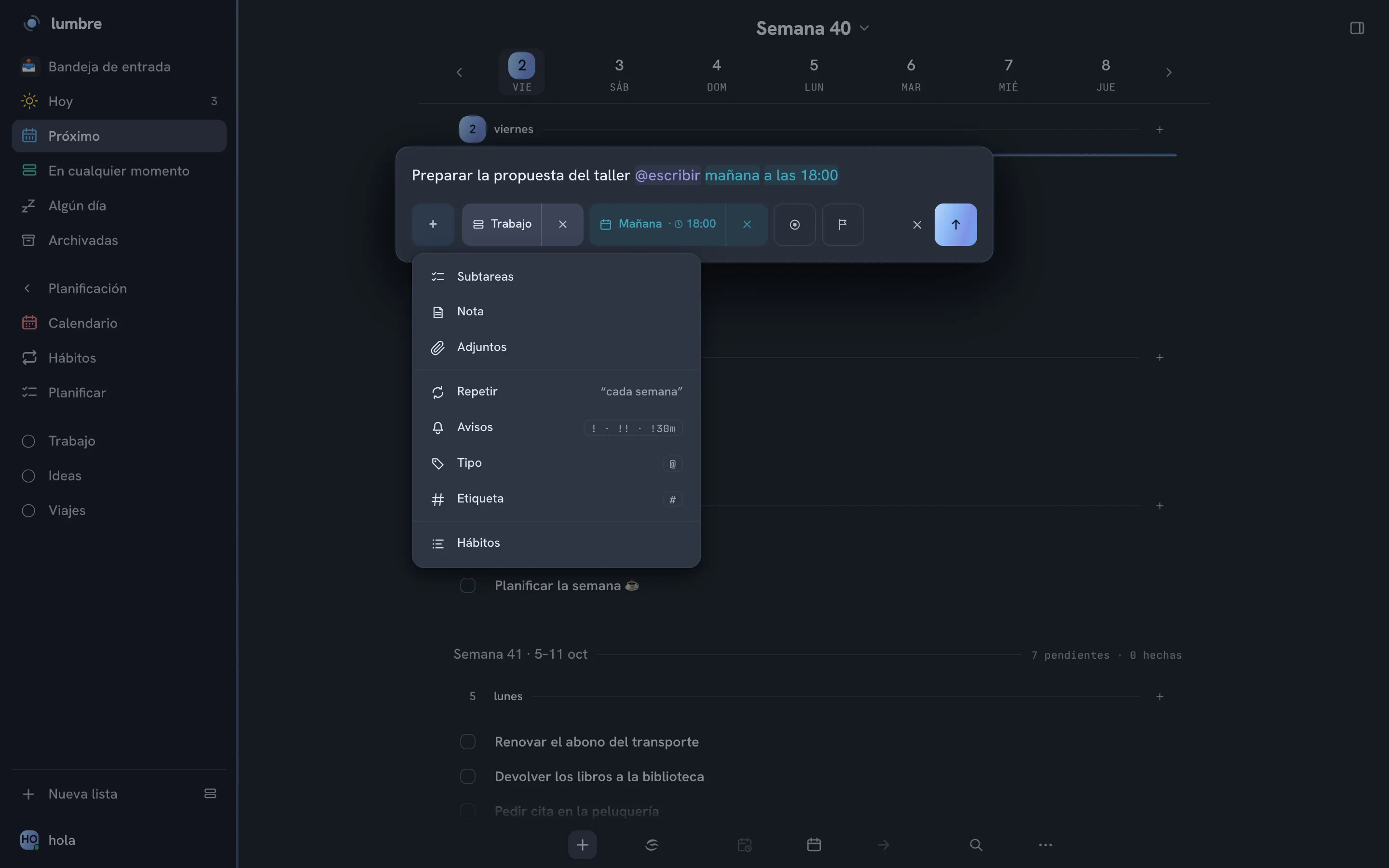
Quick-add. The capture bar, with four buttons in view: project or area, date, priority (the circle) and deadline (the flag). The + opens «More options»: subtasks, note, attachments, repeat, reminders, type, tag and habits.
By writing what you mean. This works in both of the above:
| You write | You get |
|---|---|
tomorrow at 12 | tomorrow, 12:00 |
every Friday | a task that repeats on Fridays |
$groceries | goes to the “Groceries” list |
@home | type or context “home” |
#work | tag “work” |
{March 31} | deadline, separate from the planning date |
p1 to p4 | priority |
!30m | reminder 30 minutes before |
There is also the command palette (⌘K or Ctrl+K): search, create, jump to a date and switch views without leaving the keyboard.
And from outside the app: the global shortcut on desktop, the Share sheet on iPhone and iPad, an email to your Lumbre address (the subject becomes a task for today) and the terminal command on Fedora.
A task's detail
All of this lives one click deeper and never shows up in the week: subtasks, Markdown notes with links to other tasks and lists, attachments up to 25 MB, date, time, deadline, priority from P1 to P4, list and section, workspace, type with emoji, tags, recurrence and alerts.
And the actions: postpone, duplicate, cancel (which is not the same as complete), archive, and copy the reference.
Date and deadline are different things. The date is when you plan to do it; the deadline is when it stops being useful. You can move the first as many times as you want without touching the second.
What is still pending
When you open the app, whatever was left pending on past days shows up on today, and a notice tells you what moved so you can sign off on it.
These stay where they were: completed tasks, recurring ones, “Someday” ones, deleted ones, archived ones, and anything you deliberately placed on a past day.
Deleted items can be restored for 180 days. There is an archive panel and auto-archiving if you want it.
Lists, filters and bulk work
«Someday» lists are unlimited and nest inside each other. Each has an icon, an emoji and a colour, and can have sections. There’s an Inbox for things you don’t know where to file yet, and you can pin up to five lists to the bar.
On top of that: search across your whole history, filters by state, priority, workspace, context and tag, grouping, sorting by time or priority, multi-select with a bulk action bar, drag and drop between days and lists, day and week templates, and printing the week.
And Plan (the P key), which spreads everything pending across the week’s days in a single pass.
Alerts
You set the reminders, and the app never invents a moment to interrupt you. There are only three triggers: the deadline, a time you set, and a snooze you asked for.
Where they arrive, depending on where you are:
| Channel | Where |
|---|---|
| Web Push | browser and installed app; the device has to be subscribed |
| Apple notification | iPhone, iPad and Mac |
| Android notification | the Android app |
| System notification | desktop on Mac and Fedora |
| everywhere: daily digest, weekly digest, due, timed and snoozed | |
| Native alarm | iPhone and iPad, from iOS 26 |
Email reaches anywhere. And now that Android has an app of its own, no platform is left without push.
Soplo, the dictation
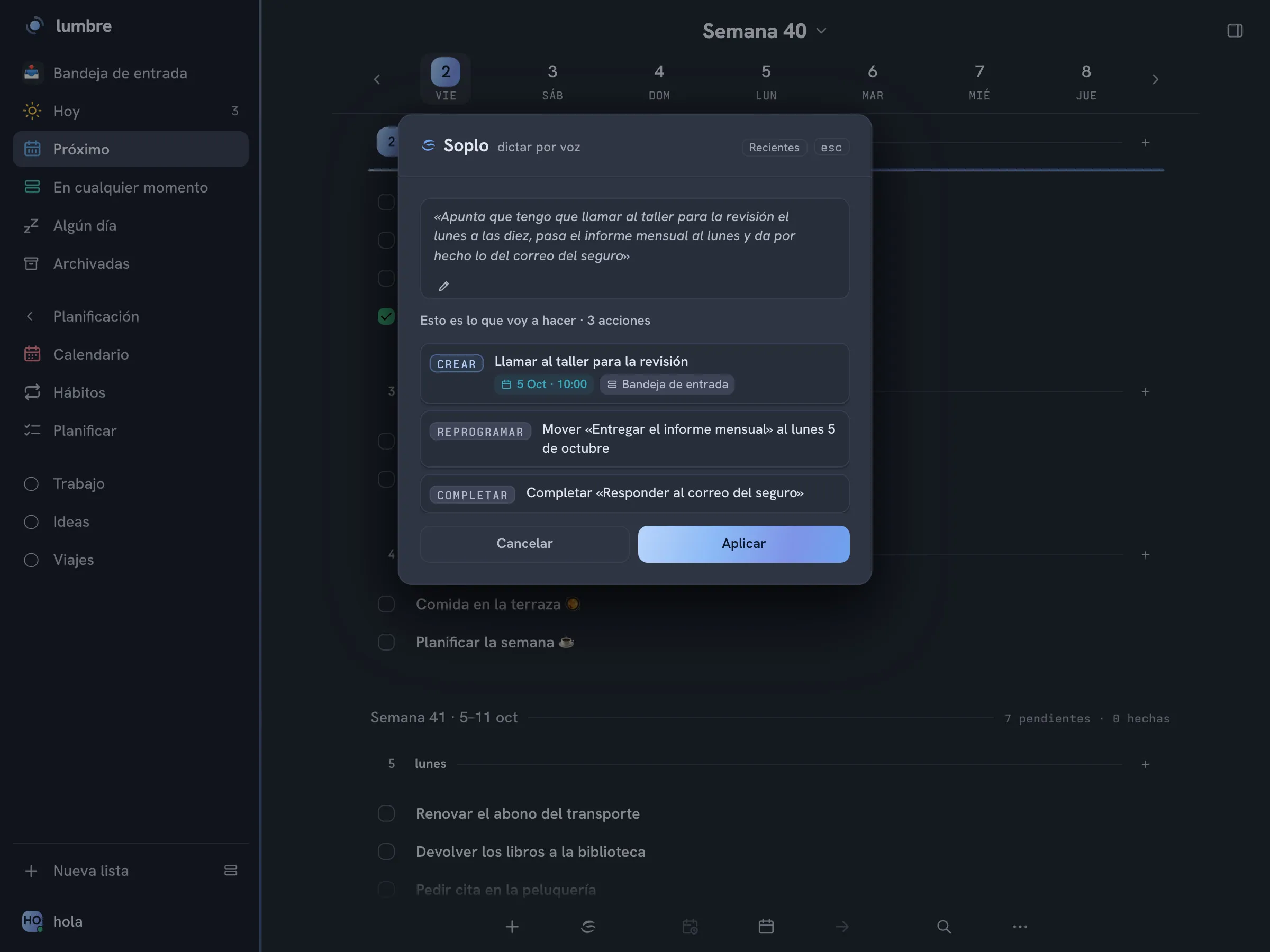
Soplo listens to what you tell it, turns it into a plan and shows you the list of things it is about to do before touching anything. Say no and nothing happens. Say yes and change your mind, and there is undo.
It ships turned off and you turn it on, giving explicit permission, because it is the one part of Lumbre that sends data outside: it transcribes with Gladia, a French company, and understands with Anthropic, which sits in the United States. You can withdraw that permission any time from Settings.
The details are in the privacy policy.
Themes and appearance
More than twenty named palettes, each with its own light and dark version. The light / dark / follow-the-system axis is independent from the palette.
Palette and mode travel with your account. What stays on each device: visual effects, interface scale (⌘ or Ctrl with the wheel), the starting view, the week layout, swipe gestures and task boxes.
Syncing, backups and your data
Lumbre is local-first: your data lives on your device first and syncs when there is a network. It works offline, and converges on reconnect even if you wrote in two places at once.
In Settings there is a panel with the sync status, the last time it ran, the local changes still pending and the space in use.
You can take everything with you in a ZIP, with the bytes of your attachments inside, and import it back. There is also a JSON export for the right to portability. And deleting your account really deletes it.
On calendars: Lumbre publishes an ICS feed on a private URL that you can subscribe to from Apple, Google or Outlook, and it can subscribe to external ICS calendars to show you those events next to the day’s tasks. The relationship is read-only in both directions: Lumbre shows you what is in your calendar and shows your calendar what is in Lumbre, without writing into it and without turning an event into a task.
The keyboard
Almost everything has a shortcut: schedule, deadline, today, this evening, someday, move to list, context, priorities P1 to P4, complete, cancel, delete, duplicate, recurrence, subtask, edit title, switch view, jump to pinned lists, previous and next period, new task, plan, search, select all, undo, interface scale, extend the selection and move the task.
The full sheet opens with ?, and it is generated from the same table the real shortcuts come from, so it cannot drift out of date.
On iPad there are native keyboard shortcuts as well.